Encrypt Text
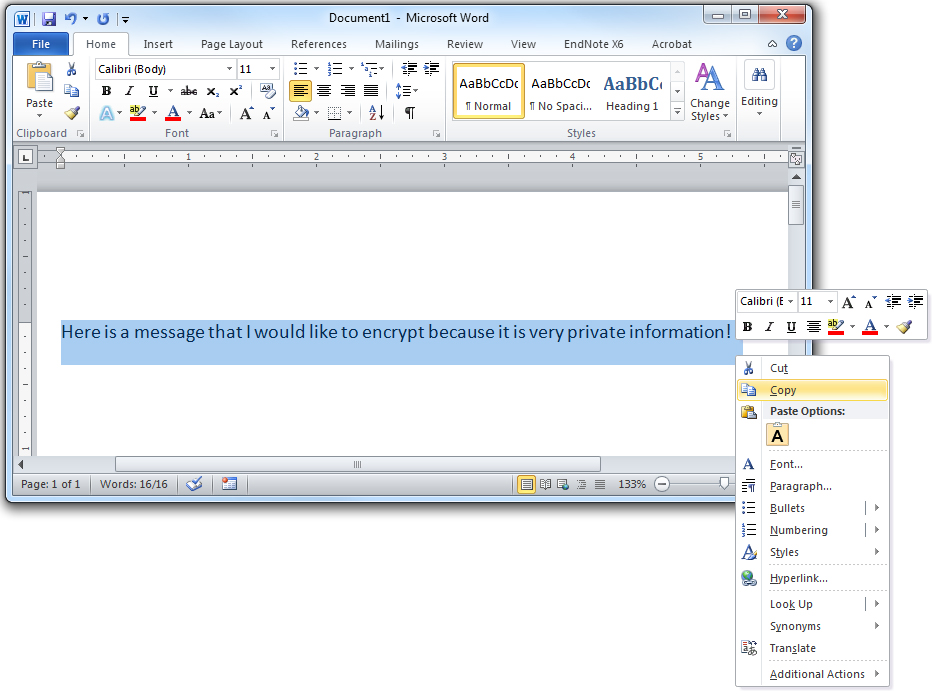
- First step is to have some text that you would like to encrypt, and copy it to your clipboard.
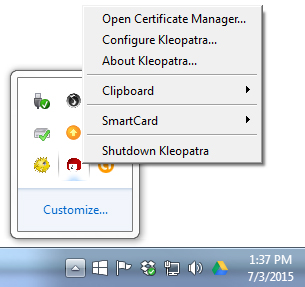
- In your Notification Area, find the icon for Kleopatra and right click on it.
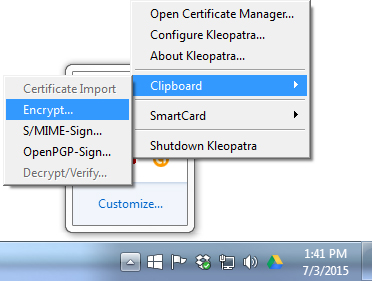
- Select Clipboard and Encrypt.
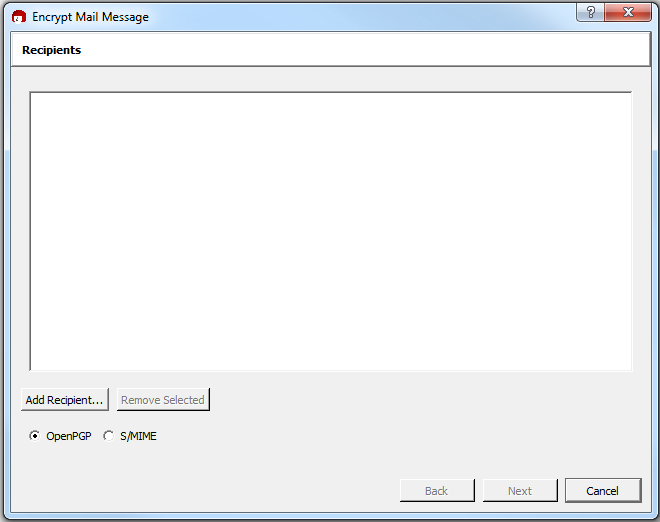
- The window that appears will show the certificates you are going to use to encrypt the meessage. Click Add Recipient.
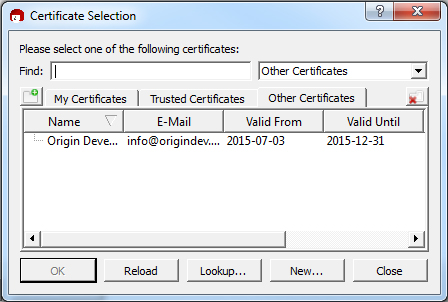
- In the window that appears, clicking the “Other Certificates” tab should show the test certificate you imported in the previous section. Select it and click OK.
- This will return you to the recipients window, where you should notice a warning indicating that this is not a certificate you have the private key for, so you will not be able to decrypt the message once it has been encrypted. Click Next.

- Once you see this window, the message has been encrypted, and the newly encrypted message is in your clipboard.

- At this point just go to your email program, or text editor, or wherever you plan to save the encrypted message, and past the encrypted text from your clipboard.

- And you have the text you copied encrypted with the certificate you selected.

- Now you can just copy and paste this text into email to send it privately to the person you encrypted it for.